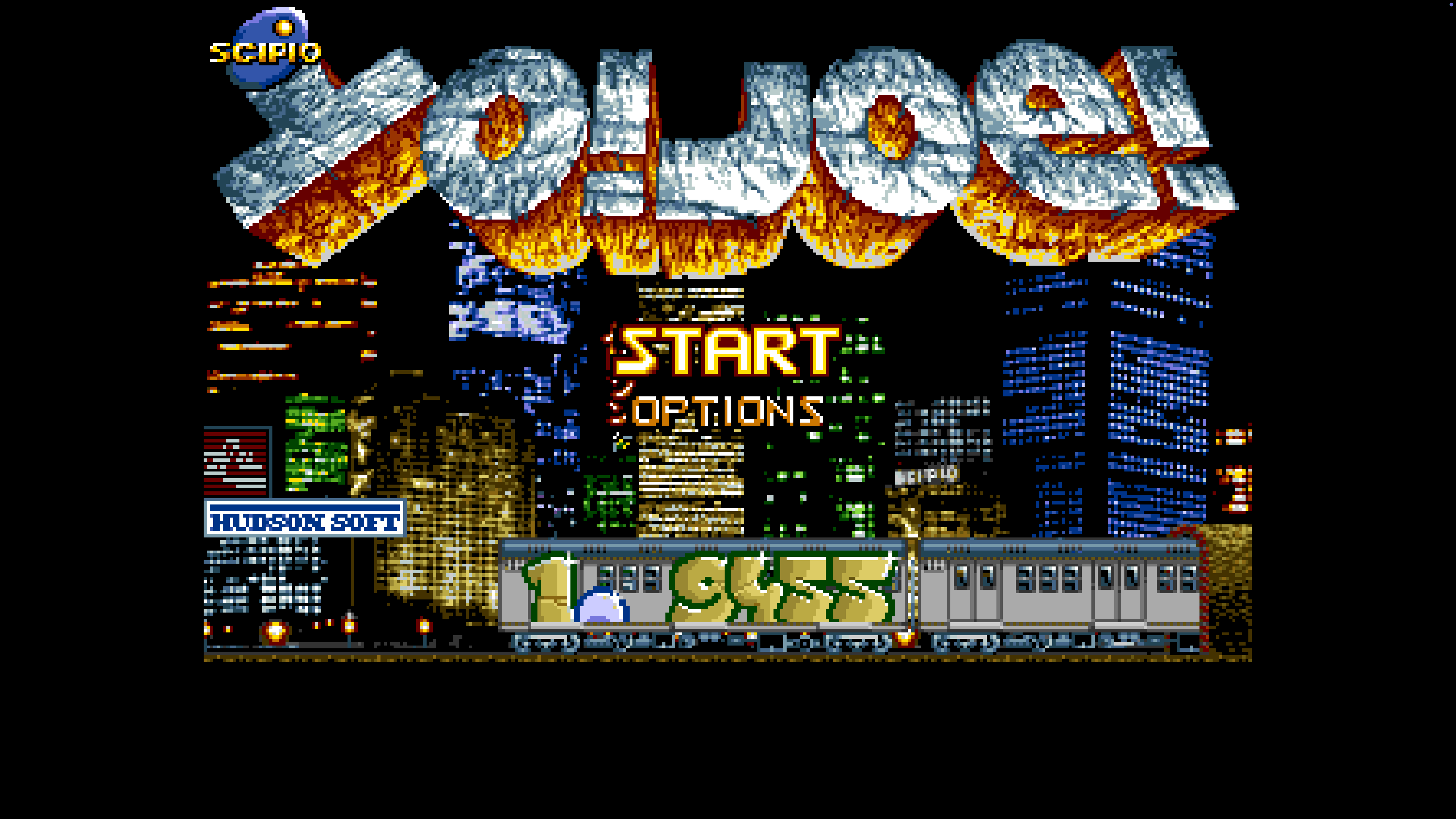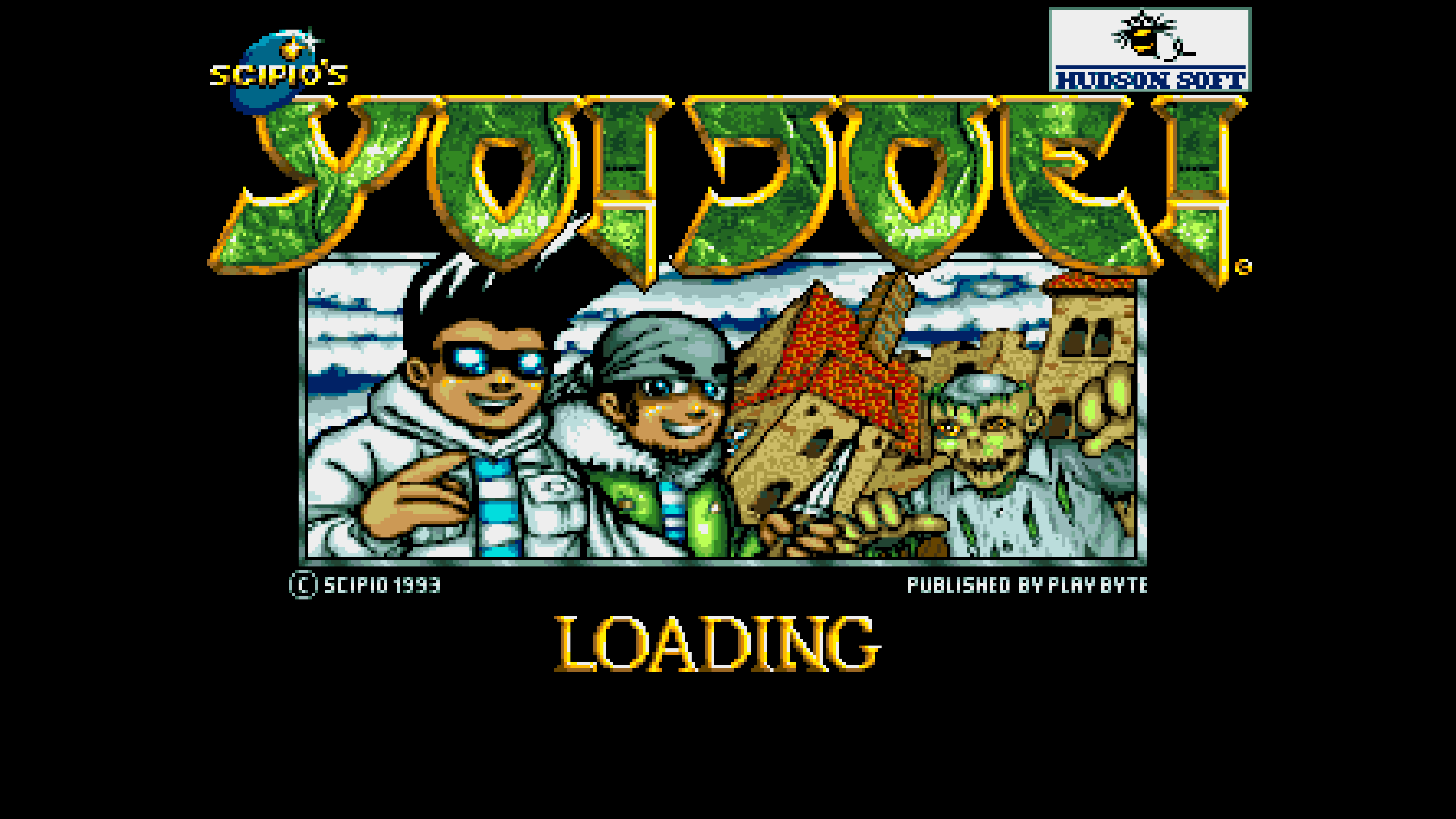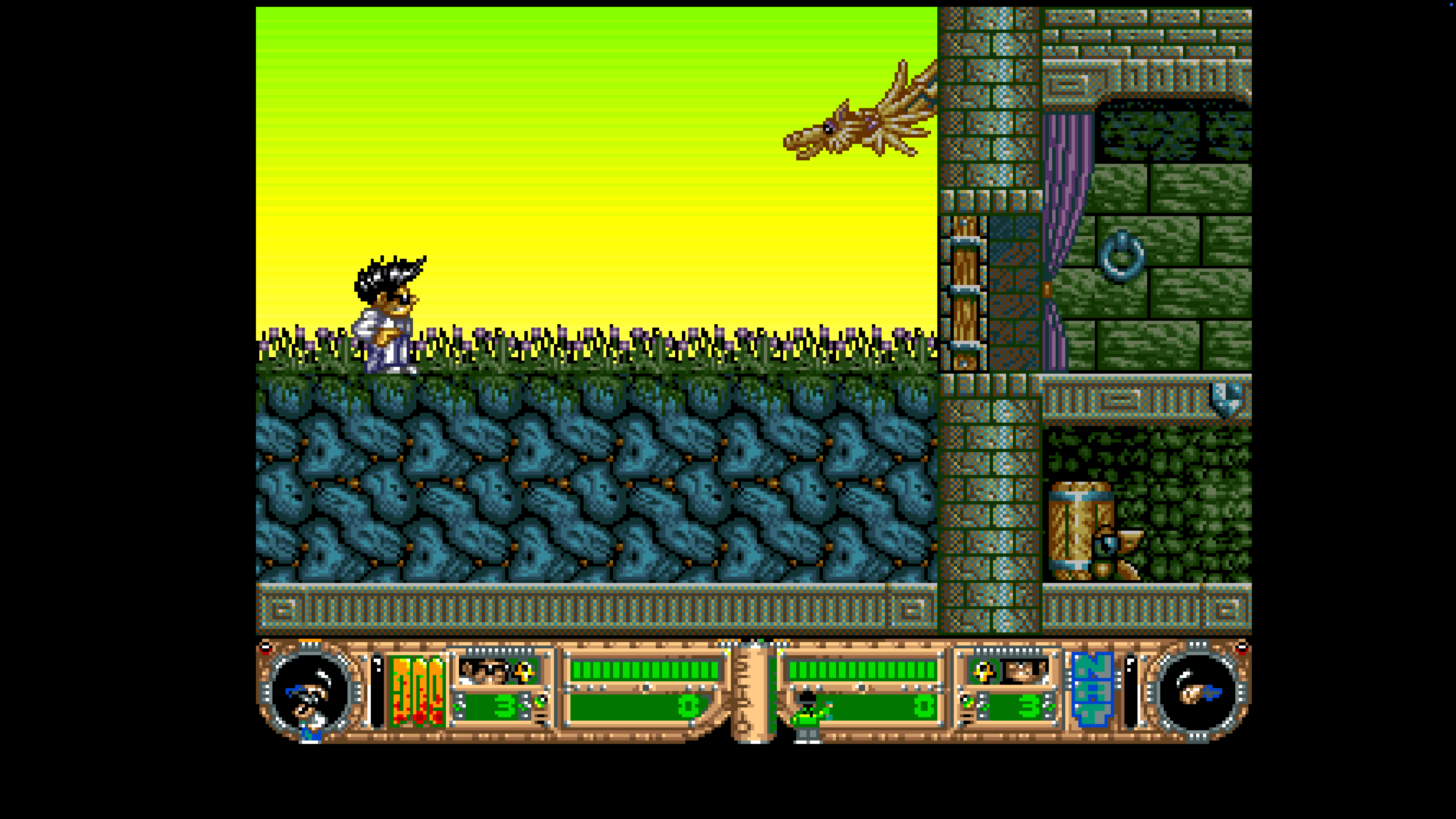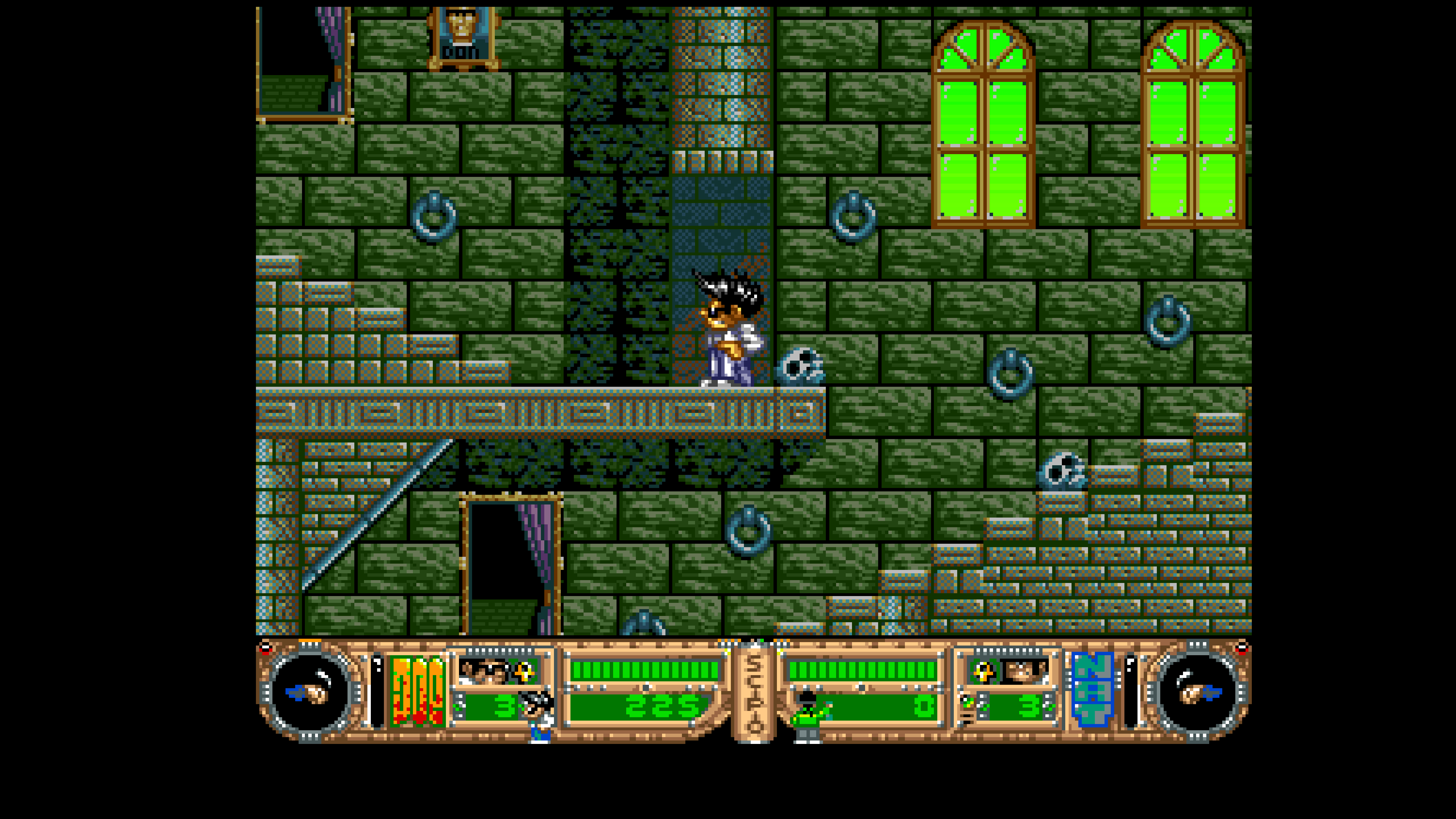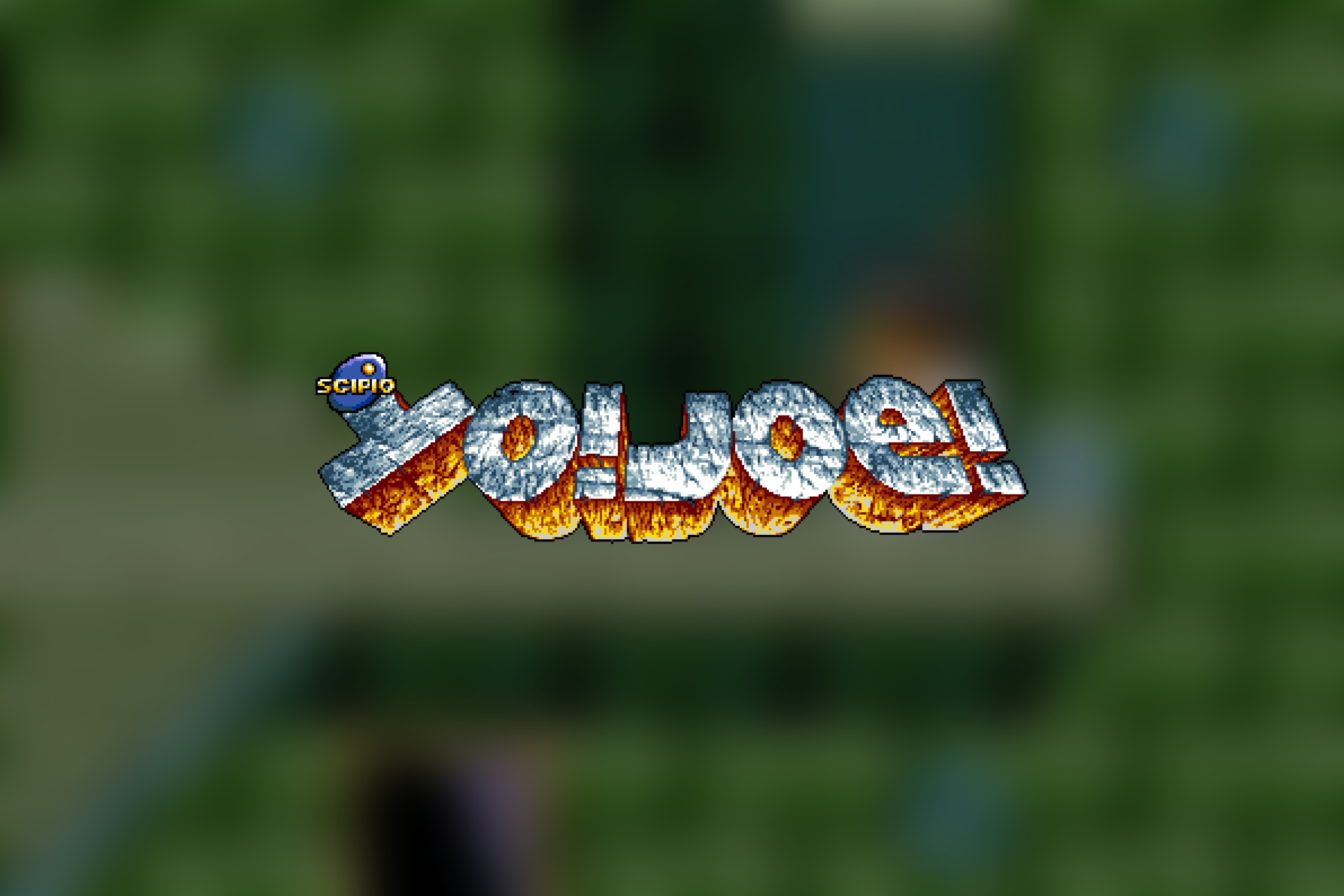
If you are using FS-UAE on macOS, you may notice that classic Amiga games sometimes look slightly soft or blurry when running in fullscreen or maximized mode. Instead of sharp pixel edges, the image gets smoothed out due to the default texture filtering used by the emulator.
Fortunately, there is a very simple fix that makes the graphics look much closer to the crisp pixel-perfect output many people expect from classic Amiga emulation. By default, FS-UAE uses linear texture filtering, which blends neighboring pixels together and creates a softer image. Changing the filtering mode to nearest-neighbor scaling restores the original sharp pixel appearance.
To enable it, open the bundled FS-UAE Launcher application that ships together with FS-UAE. The emulator itself uses configuration files internally, but the launcher provides a graphical interface for managing settings and game profiles.
Inside FS-UAE Launcher, open your game configuration, switch to the advanced settings section, and add the following line:
texture_filter = nearestAfter restarting the emulator, games should immediately appear noticeably sharper, especially in fullscreen mode. Pixel art becomes much cleaner, UI elements look more defined, and the overall presentation feels much closer to authentic retro hardware output without the unwanted blur.
Following screens show Yo! Joe! being emulated with the adjusted setting.